HDR Photography: Balance Highlights in Portraits
- Published
- Reading time
- 7 min read
- Prepared by
- LiteGallery editorial team
Balance highlights in HDR portraits by combining exposures so bright areas retain detail without making the face look unnaturally dark or flat. Keep the subject’s skin tones consistent, and use the brightest exposure only where it restores highlight detail.
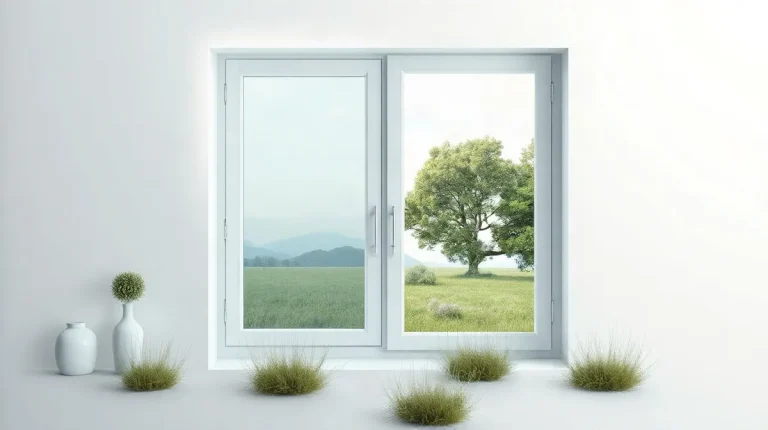
HDR can help when a portrait includes both a shaded face and a bright window or sky. The aim is not to make every tone equally bright, but to hold detail across the scene while keeping the portrait believable. Check the skin, hair and background separately as you blend.
| Approach | Best suited to | Main risk | What to check |
|---|---|---|---|
| Single exposure | Even light or a moving subject | Clipped highlights or blocked shadows | Histogram and face exposure |
| Exposure blend | Static subject in strong backlight | Ghosting between frames | Face, hair and fabric alignment |
| HDR tone mapping | A scene needing retained tonal detail | Flat contrast or unnatural skin | Mid-tones, saturation and light direction |
- 16-bit or 32-bit floating-point numbers Common HDR image-data storage formats
- 0 to 255 Usual curve-coordinate range in Lightroom Classic and Camera Raw
- up to 500 Extended curve range in HDR mode
When does HDR photography help a portrait?
HDR helps a portrait when a backlit face sits against a bright window or sunset and one exposure cannot retain detail in both the face and the background.
Check the histogram before making multiple exposures. Clipped highlights or blocked shadows indicate that tonal information may be lost; if the scene fits within one exposure, HDR adds work without recovering useful detail.
Use HDR to preserve tonal information, not to impose a style. The face should still read as lit from a clear direction. In post-processing, adjust highlights, shadows and mid-tones carefully; aggressive tone-mapping can make skin and light look unnatural.
Compare the colour portrait with a black-and-white version when colour distracts from the relationship between light, shadow and facial form. The monochrome view can make it easier to judge whether the face’s shape and the direction of light remain clear.
How do you capture exposures for a clean portrait blend?
Capture a clean HDR portrait blend by keeping the camera fixed, locking focus and aperture, and changing only shutter speed between exposures. A steady camera keeps the face, frame and background aligned; a steady subject helps prevent ghosting.
Lock focus and aperture
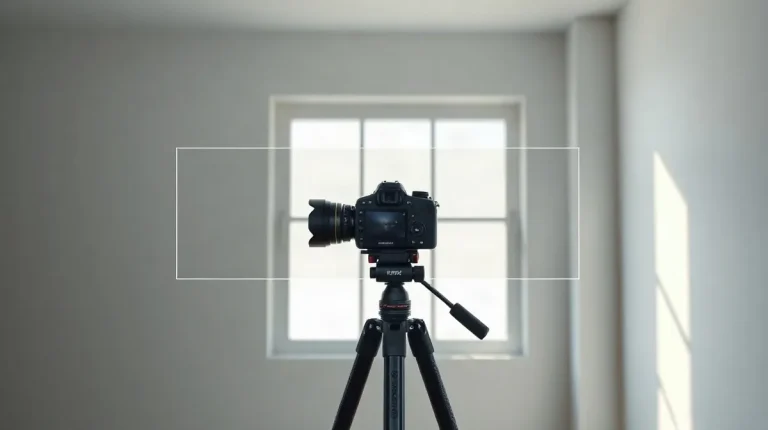
Mount the camera on a tripod where possible, then focus on the subject’s face and leave focus and aperture unchanged. Use a remote release or the camera’s timer to limit movement when you trigger the bracket. Ask the subject to hold the same pose for each frame.
Protect the brightest detail
Vary shutter speed to make a darker exposure that retains highlight detail and a brighter one that records shadow detail. Check the frames for movement before blending: shifting hair, hands or loose fabric can leave doubled edges or ghosting in the portrait.
How do HDR files differ from the JPEG you deliver?
HDR files preserve a wider range of tonal values for editing, while a JPEG is typically a finished, web-ready image for delivery. Radiance RGBE and OpenEXR commonly store image data as 16-bit or 32-bit floating-point numbers; LDR images are typically encoded as 8-bit integers.
A high-bit-depth working file gives you more tonal information to adjust across highlights, shadows and mid-tones. It does not make a portrait look natural by itself: restrained blending and tone-mapping still matter, especially around bright skin and deep shadows.
- HDR working file: Keep it for continued editing and to preserve the merged tonal information.
- JPEG delivery: Choose it when the client needs a web-ready image; confirm the required format with the client.
Keep an untouched source frame alongside the merged working file. If you later want to change the blend, those files let you return to the original exposures rather than trying to recover options from a flattened export.
How do you blend and tone-map the portrait?
Blend the bracketed frames in Lightroom, Photoshop or another editor’s exposure-blending tool, then tone-map only enough to recover detail that supports the portrait. Check the face, hairline and high-contrast background edges at full size before refining the overall image.
Check skin before the background.
Keep the face dimensional: lifting every shadow can flatten its shape and turn dark areas grey. Adjust mid-tones in small steps, and restrain saturation; aggressive tone mapping can make skin colour look artificial. Let the portrait guide how much highlight and shadow detail you recover.
- Lightroom Classic and Camera Raw: The curve’s usual coordinate range is 0 to 255; in HDR mode, it extends up to 500. Make small curve adjustments and judge the result on the display where the image will be viewed.
- Apple XDR displays: Adobe describes HDR editing as a use for displays such as the MacBook Pro 14-inch or 16-inch released in November 2021 or later.
When is a single exposure better than HDR?
A single exposure is better than HDR when the scene’s highlights and shadows fit within the sensor’s capture, or when a natural fade into shadow matters more than recovering every detail.
For a moving portrait subject, one frame also avoids mismatched moments: a person can shift position or expression between bracketed exposures, leaving a blend with ghosting or an uneven face. Choose the exposure that best protects the face, then accept darker background shadows if they support the portrait.
- Use one frame when the face and important highlights are already recorded without clipping.
- Use one frame when the subject may move or change expression during a bracketed sequence.
- Keep shadow falloff when lifting every dark area would make bright window detail compete with the face and flatten the portrait.
If an HDR blend creates bright halos around hair or shoulders, reduce the blend or soften the mask transition. Compare it with the original exposure; if the single frame preserves the face and the portrait’s depth, keep it.
What should you check before exporting an HDR portrait?
Before exporting an HDR portrait, inspect skin colour, catchlights, hair edges and the transition to the bright background at both fit-to-screen and full-size views.
- Check skin and eyes: Look for unnatural colour and catchlights that have lost their shape or become too prominent.
- Check edges: At full size, inspect hair against the bright background for halos or a visibly abrupt transition; at fit-to-screen, judge whether the portrait still looks natural as a whole.
- Compare the blend with its source frames: Toggle between the merged image and the originals. The blend should recover useful highlight and shadow detail without making the direction of light difficult to read.
- Match the export to its destination: An HDR working image and an ordinary web image do not display the same tonal range. Check the exported file in the intended viewing context, rather than assuming the edit will look identical everywhere.
- For monochrome, check tonal structure: Compare how the portrait’s highlights and shadows read alongside the black-and-white portrait overview.
Frequently asked questions
How many exposures should I use for an HDR portrait?
Can HDR make skin look unnatural?
Should I use a tripod for HDR portraits?
Do I need an HDR display to edit an HDR portrait?
Sources
- matiash.com — “Your guide to HDR photography”
- PI USA — “Mastering Dynamic Range: Essential Tips for Photographers”
- creativeraw.com — “How to Avoid the “HDR Look” when Exposure Blending – CreativeRAW”
- digital-photography-school.com — “5 Tips for Successful HDR Photos”
- en.canon-cna.com — “HDR Photography Explained: Techniques, Tips & Canon Camera Guides – Canon Central and North Africa”