Calibrate Your Monitor for Consistent Gallery Exports
- Published
- Reading time
- 8 min read
- Prepared by
- LiteGallery editorial team
Calibrate your monitor by measuring it with a display calibrator and applying a profile suited to your editing workflow. This makes brightness, colour and tone more predictable across gallery exports.
A screen that looks right to you can still make exported photos appear too dark, too warm or too saturated elsewhere. Calibration gives you a more dependable view while editing; it cannot make every viewer’s screen match yours.
For consistent gallery exports, start with a stable monitor setting and check the display profile your editing software uses. The aim is not to make every image look identical on every device, but to avoid baking your screen’s quirks into the files.
| Task | Display approach | Export or check |
|---|---|---|
| SDR gallery editing | Hardware colorimeter; controlled luminance | sRGB JPEG with embedded profile |
| Rough adjustment without a meter | Windows built-in visual calibration | Verify the exported file in a color-managed viewer |
| HDR content | HDR-capable display; SDR targets do not cover the full workflow | Confirm the intended HDR delivery format |
| Print preparation | Measured monitor profile | Check the print provider’s file and profile requirements |
- 120 to 140 cd/m² Suggested monitor luminance for judging social-media and portfolio exports
- above 1000 nits Brightness supported by some relatively affordable HDR display options
How should you calibrate for web and client galleries?
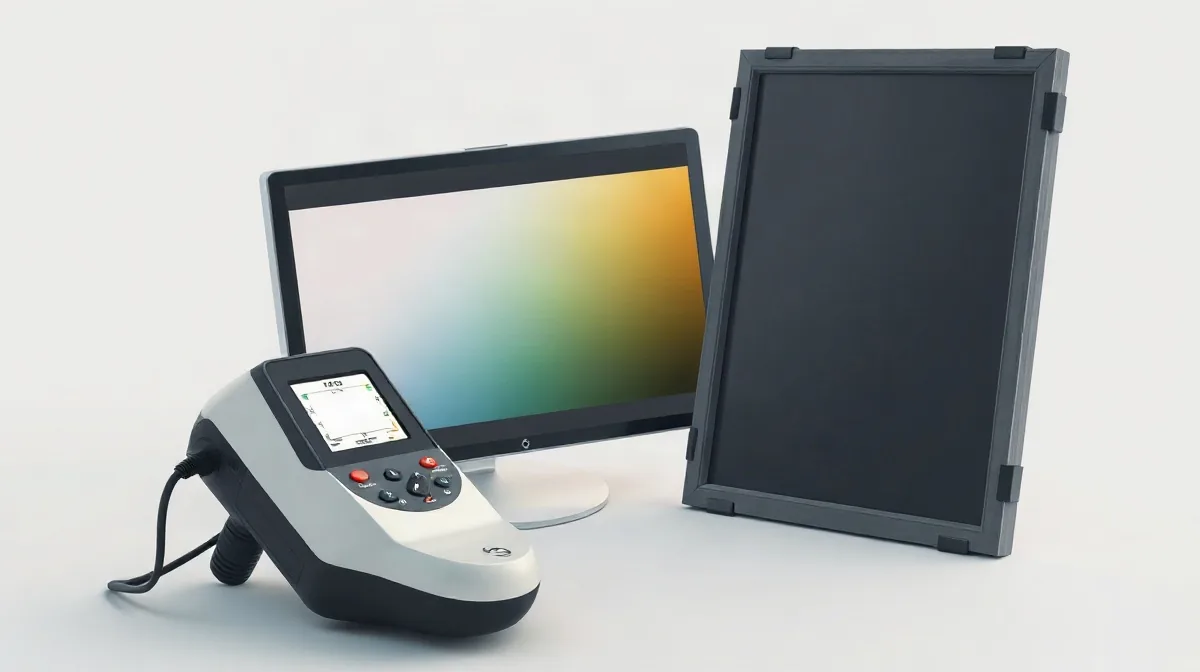
Calibrate the monitor with a hardware colorimeter, set its luminance near 120 to 140 cd/m², then export gallery JPEGs in sRGB with the profile embedded. The colorimeter measures the display against reference values and creates an ICC profile specific to that monitor.
For SDR content, most modern PC monitors cover the sRGB / Rec709 color spaces well, so sRGB is a practical target for web and client galleries. Keep the monitor’s ICC profile installed for display correction; it describes how that screen renders color and is not the profile to use for gallery exports.
Separate display correction from export
Use the monitor-specific profile to correct what you see while editing, then convert the finished JPEGs to sRGB and embed the sRGB profile. This gives browsers and other devices a defined color space to interpret, rather than relying on an untagged file.
Judge portfolio and social-media exports at a monitor luminance near 120 to 140 cd/m². A display set much brighter can make you darken edits unnecessarily, leaving images looking too dark on other screens.
How do you prepare the screen before measuring it?
Prepare the monitor by disabling HDR and automatic color adjustments, then let the display settle in the mode you will use for editing before calibration.
For an SDR workflow, turn HDR off first. HDR can switch the display into a different brightness and color mode, so a profile made while HDR is active may not describe the screen you use for SDR edits. Also disable automatic color features that alter output as you work; otherwise, the display can change after measurement.
Choose a measurement method
- With a colorimeter: Set the monitor to its intended editing mode, allow it to settle, and then run the device’s calibration workflow. The colorimeter measures the screen’s output and creates a monitor-specific profile. Save that profile so it can be used with the calibrated display mode.
- Without a colorimeter: Windows’ built-in color calibration can provide a rough visual adjustment. It relies on what you see rather than measuring the display, so it is not a substitute for a measured profile.
Keep HDR and automatic adjustments disabled while editing, too. If you change the display mode later, the saved profile may no longer match the screen; check the monitor’s mode and profile before preparing gallery exports.
Why does the monitor profile not replace an sRGB export?
Your monitor’s ICC profile describes how that particular screen displays color; it does not tell every client device how to display your JPEG. For gallery delivery, export an sRGB JPEG, embed the sRGB profile, and use the resolution required by the gallery or delivery brief.
An ICC profile is a set of color instructions. The monitor profile helps color-managed software interpret and display an image on your calibrated screen. The embedded sRGB profile travels with the exported file, giving compatible browsers and devices a shared reference for interpreting its colors.
Modern browsers and devices use embedded color information to display tagged images more consistently. That does not make every screen identical, but it helps prevent a file edited for your monitor from depending on that monitor’s profile after delivery.
Why sRGB remains the practical choice
P3-capable phones and laptops can display a wider range of colors than sRGB. A gallery file tagged as sRGB remains the practical common choice across client devices; exporting in a wider space does not make every display show those extra colors correctly. Before export, check the gallery’s required color space and pixel dimensions, then embed the matching sRGB profile in the JPEG.
When does this workflow need to change?
Change the workflow when your deliverable is HDR, print, product visuals, design review or brand assets, because SDR gallery settings do not cover every color and viewing requirement.
For HDR content, SDR calibration targets do not describe the full workflow. Relatively affordable display options can show both most of the rec2020 gamut space and support above 1000 nits brightness. Choose the delivery format and viewing environment before editing for HDR; an SDR gallery export is not an HDR master.
Match the workflow to the output
- Web galleries: For SDR exports, use sRGB JPEGs and embed the profile. Keep HDR display features disabled when judging those exports so the screen does not change their appearance.
- Print: Confirm the print provider’s required file format and profile. A web-oriented sRGB workflow may not match the provider’s requirements.
- Product visuals, design review and brand assets: Calibrate before making measured color decisions, since those decisions affect how products and brand colors are represented.
Print preparation, product visuals, design review and brand assets make color measurement especially consequential. If the job has a defined delivery specification, follow that before choosing monitor settings or exporting.
What can still cause a mismatch after calibration?
A calibrated monitor cannot make every client’s screen show your gallery exports identically: device settings, ambient light and screen capabilities all affect the image a viewer sees. Your profile describes your monitor, not theirs.
Luminance matters alongside color. If you edit with the screen too bright, you may darken photographs to compensate; those files can then look too dark on a screen viewed at ordinary brightness. Judge an export at a monitor brightness suited to the viewing conditions you expect, rather than treating color calibration alone as a guarantee.
Software-only calibration can provide a rough adjustment to brightness and gamma, but it relies on your visual judgment. Your eyes adapt to room lighting, so a result that seems neutral in one environment may look different after the light changes. A hardware colorimeter measures the display’s output and creates a profile for that monitor, reducing reliance on visual estimation.
Check the display settings again
Calibration can be undermined if a display feature changes the image afterward. Recalibrate regularly, and check that HDR, automatic brightness or other automatic color features have not been re-enabled. The names and controls vary by device, so inspect the display settings on the monitor and computer you use for editing.
What should you check before sending a gallery?
Before sending a gallery, confirm that the export is an sRGB JPEG with its color profile embedded, matches the delivery resolution requested by the client or gallery platform, and looks consistent with your edited version in a color-managed browser or viewer.
- File format and profile: Check the export settings for JPEG, sRGB, and an embedded profile. A missing profile can affect how the image’s colors are interpreted.
- Pixel dimensions: Compare the exported file’s dimensions with the client’s or platform’s delivery requirements; do not assume the export preset matches them.
- Visual comparison: Open the JPEG in a color-managed browser or viewer and compare it with the edited image. Check for visible changes in color and brightness.
If the client sees different colors
If a client reports a color discrepancy, ask which device and viewing app they used before changing the master edit. The display and app are part of the viewing conditions, so first establish what they are looking at.
Keep the original edit unchanged while you check the exported file and viewing setup. If the client is using a different app or device, compare the same JPEG in a color-managed viewer before deciding whether the master needs adjustment.
Frequently asked questions
What brightness should I use for gallery editing?
Should I embed the monitor profile in a client JPEG?
Can I calibrate without a colorimeter?
Why do gallery colors look different on a client’s phone?
Key takeaways
- Use a hardware colorimeter to create a monitor-specific ICC profile.
- Judge SDR gallery edits near 120 to 140 cd/m².
- Export delivery-size JPEGs in sRGB and embed the profile.
- Disable HDR and automatic color features while calibrating SDR work.
- Ask for the client’s device and viewing app before revising an edit over a mismatch.
Sources
- VIEWBUG — “How to Calibrate Your Monitor for Photo Editing (Step by Step)”
- us.ktcplay.com — “Fix Washed Out Colors in Exported Images”
- Bay Photo Lab — “Bay Photo Lab”
- phototacopodcast.com — “Photographer's Guide To Screen Calibration With DisplayCal – Photo Taco Podcast”
- Datacolor — “Spyder Monitor Calibration Tools”