How to Lay Out a Photobook in an Online Editor

- Published
- Reading time
- 7 min read
- Prepared by
- LiteGallery editorial team
Updated: October 13, 2026
To lay out a photobook in an online editor, choose a format, upload and arrange your photographs, then build each spread around a clear visual sequence. Use the editor’s layout tools to adjust image sizes, spacing and captions, and preview the finished pages before ordering.
A strong photobook feels like a story, not just a collection of images. As you work, balance full-page photographs with quieter spreads, keep text easy to read, and check that important details aren’t too close to the page edges. This guide walks through the process of shaping a polished layout in an online editor.
| Option | Where it works | Useful for |
|---|---|---|
| Blurb online editor | Browser | Simple book design without a download |
| Full-bleed layout | Online book editor | Placing uploaded JPEGs |
| Design Templates | MILK layout menu on the right | Choosing a spread after setting image count |
| Grid Snap | Adobe Lightroom Classic, Guides section | Aligning photos in a Book layout |
| Custom or edited templates | Book-layout editor where available | Adapting page layouts to taste and photo count |
How do you prepare photos for an online photobook editor?
Prepare your photos by exporting them as JPEG files, keeping them together, then uploading them to the editor and placing them in its full-bleed layout. This gives you one easy-to-find group of images to select as you build the book.
Exported JPEGs
Keep the exported JPEGs in a single folder before uploading; it makes the chosen images easier to locate and place. Pixel dimensions, colour profile and file-size limits differ between editors, so check the specifications of your chosen service rather than guessing.
Browser-based design
Blurb’s online editor runs in a browser and requires no software download. Its stated uses include simple photo books and layflat options, so you can begin arranging the uploaded JPEGs there without installing a desktop program.
- Blurb online editor: browser-based, with no download required; intended for simple photo books, including layflat options.
- File preparation: exported JPEGs grouped together for upload; confirm the editor’s file specifications before exporting if they are available.
How should you plan a spread around the centre binding?
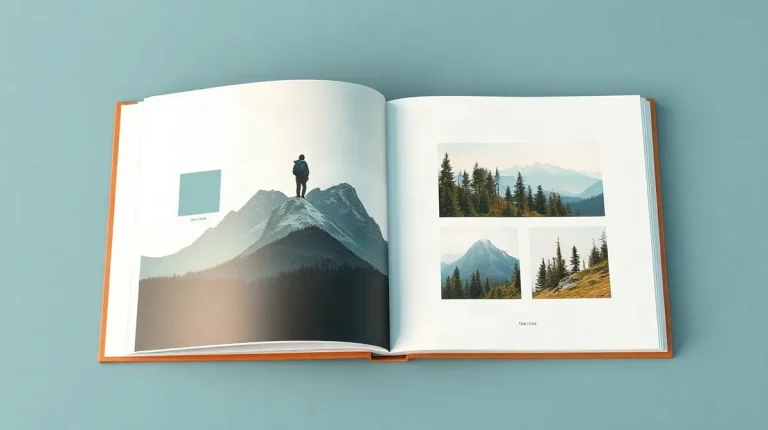
Keep faces, text and other essential image details out of the centre binding area, and check the spread in the editor’s book preview. The fold can interrupt anything placed at the centre, even when the photograph is designed to run across both pages.
For a full-bleed spread, Artifact Uprising’s layout guidance says to account for the centre binding area when designing the image before placing it in the layout. A single photograph can span both pages, but position its key details on either side of the fold; let less important parts of the image cross the binding instead.
Gutter allowances differ between binding types and printers, so don’t rely on a universal margin value. Use the online editor’s preview to check the actual spread, and follow the instructions for the specific book you are ordering, since binding and layout options can vary by product.
How do you choose between one image and a multi-photo layout?
Image count first
Choose a single-image layout when one photograph should lead across the spread; choose a multi-photo layout when you want to include more images on the same spread. In MILK’s desktop book-design workflow, the first step is to select the desired image count, which narrows the layout options to templates made for that count.
- One image: gives a photograph room to lead across the spread.
- Multiple images: places more photographs on the same spread.
Template second
After choosing the image count in MILK’s desktop editor, browse the Design Templates in the layout menu on the right. Compare the available arrangements with the shape and visual importance of the selected photos: a template should suit the images you want to feature, not just fit their number.
There is no universal maximum number of images per spread; it depends on the template and the story the spread tells. The available choice depends on the templates shown in the editor, so check those options rather than assuming a particular limit.
How can you align photos or customise a page layout?
Align photos with Adobe Lightroom Classic’s Grid Snap option under Guides, and customise a page by adjusting a supplied layout or creating a custom one where the software allows it. Grid Snap is specific to Lightroom Classic; it should not be assumed to exist in every browser-based editor.
Lightroom Classic
In Lightroom Classic’s Book layout, Grid Snap helps align photographs against a grid. Find it in the Guides section when arranging images, rather than looking for the same control in an online editor.
Custom templates
For a browser-based photobook editor, start with a premade layout and adapt it to your preferred look and the number of photographs on each page. If a template is close but not quite right, edit its arrangement or build a custom layout when the software provides that option.
- Premade layouts: choose a design that fits the image count, then customise its page arrangement.
- Edited or custom layouts: change the supplied design or create a new one to suit your taste and the photos you want to include.
What can go wrong with full-bleed spreads and crowded layouts?
Full-bleed spreads can lose important details into the centre binding, while crowded layouts leave less space for each photograph. A full-bleed placement fills the layout, but it does not make the fold safe: keep faces, text and other essential details clear of the binding area.
Binding and image density
Image count is a layout choice, not a guarantee of a better spread. In an online editor, select an image count and compare the available Design Templates before settling on one; a template that holds more photos may give each image less room.
- Full bleed: use the edge-to-edge placement, but keep important details away from the centre fold.
- More images: compare templates at different image counts and check whether each photograph remains readable at its smaller size.
- Alignment: Grid Snap is a control specifically named for Adobe Lightroom Classic’s Book layout; do not assume an online editor offers the same option.
Check service requirements
Print requirements vary by book service. Before uploading JPEGs or finalising a spread, check those four requirements with the selected service rather than relying on settings from another editor.
What is the practical workflow from JPEG export to final review?
Export the selected photographs as JPEGs, upload those files to the online book editor, and place them in its full-bleed layout; then arrange each spread and review it in preview. Export settings are set by each service, so follow your editor’s own recommendations.
- Upload: Add the exported JPEGs to the editor and place them in the full-bleed layout.
- Build each spread: In MILK’s workflow, choose the desired image count, then browse the Design Templates in the layout menu. Templates can be adapted, or you can create layouts to suit the photographs.
- Check the pair: Use the editor preview to inspect both pages together. Pay particular attention to any part of an image that approaches the centre binding, where the spread’s two pages meet.
Alignment and final review
Adobe Lightroom Classic offers a separate alignment option: in a Book layout, turn on Grid Snap under Guides to align photographs. Use the online editor’s spread preview to review the composed pages, and Grid Snap when laying out a book in Lightroom Classic; JPEG export settings depend on the service you print with.
Frequently asked questions
Can I design a photobook in a browser without installing software?
What file type does the described upload workflow use?
How do I keep a photo detail from disappearing into the binding?
Where is Grid Snap in Lightroom Classic?
What this piece draws on
- help.artifactuprising.com — “Layouts for Photo Books”
- blurb.com — “Make a Book Online: Free Book Design Tools”
- milkbooks.com — “Create MILK Photo Books & Albums On Desktop”
- helpx.adobe.com — “Create photo books – Lightroom Classic”
- lemonthistle.com — “organizing years of photos to Create photo books for your family (Modern Yearly Photobooks) – Lemon Thistle”