2.7K Resolution Size: Pixels, Crops and Exports
- Published
- Reading time
- 6 min read
- Prepared by
- LiteGallery editorial team
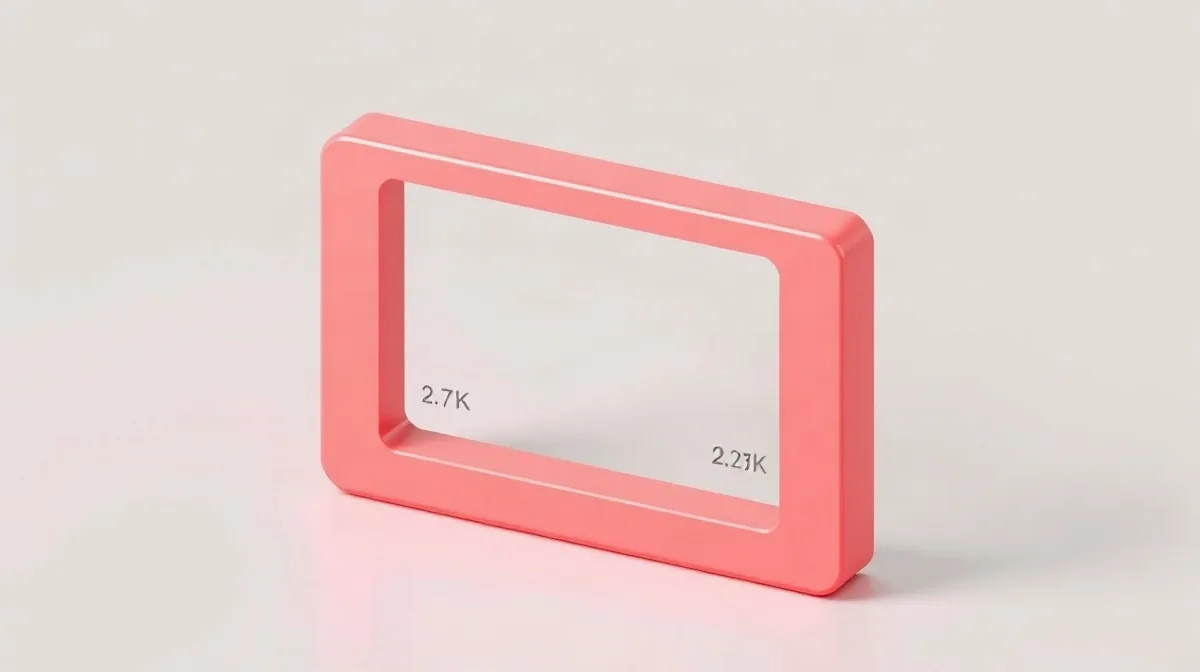
2.7K resolution typically means roughly 2,700 pixels across, but the exact dimensions depend on the format. It describes width, not a single fixed image size.
That distinction matters when you crop footage or prepare an export: changing the aspect ratio changes the pixel dimensions, while resizing changes the image itself. This guide explains how to interpret 2.7K resolution size and what it means for crops and exports.
| Camera mode | Frame shape | Editing consideration |
|---|---|---|
| Standard 2.7K | Widescreen | Fits a wide-frame delivery more directly |
| 2.7K 4:3 | Taller frame | Uses more sensor height for vertical reframing |
| Custom 2.7K project | Set to recorded dimensions | May be needed for 2.7K editing or export |
| 4K export | Set to the intended output format | Does not add detail absent from the source |
What does 2.7K resolution size mean in pixels?
“2.7K” is a resolution class, not one fixed pixel size: a camera’s exact width and height depend on the selected aspect ratio and recording mode. Check the camera’s recording menu for the dimensions attached to each mode, or inspect the recorded file’s properties before creating an editing project.
A standard 2.7K mode records a widescreen image, while 2.7K 4:3 uses more of the sensor’s height and produces a taller frame. Those modes can therefore have different pixel dimensions even though both carry the 2.7K label; the label alone is not enough to set an export or project size.
2.7K is not 2048 × 1080
2048 × 1080 is a common 2K cinema resolution, not the definition of 2.7K. For an accurate match, use the pixel dimensions shown for the selected camera mode rather than treating “2.7K” as a universal width or substituting the separate 2K cinema format.
How does 2.7K 4:3 differ from standard widescreen?
2.7K 4:3 captures a taller image by using the sensor’s full height, while standard 2.7K records a widescreen-shaped frame for direct wide-format playback. The “2.7K” label alone does not tell you the recorded frame’s dimensions or aspect ratio, so check those in the camera or editing software before setting up a crop or export.
Widescreen for direct playback
Standard 2.7K suits a shot intended to stay wide: its frame is already shaped for widescreen playback, so it can go straight into a matching edit. Choose it when you do not need extra image above or below the intended composition.
4:3 for vertical reframing
2.7K 4:3 keeps more vertical image area for reframing, which can help when adapting a shot to a different composition. The final crop still depends on the delivery format; capturing 4:3 does not guarantee that the exported video will remain 4:3.
- Standard 2.7K: choose it for a direct widescreen edit.
- 2.7K 4:3: choose it when the extra vertical area is useful for reframing.
- Either mode: verify the recorded dimensions and aspect ratio in the camera or editor before exporting.
How should you set a 2.7K editing and export project?
Set the project format
In Kdenlive, set the project and export to the footage’s actual pixel dimensions and aspect ratio, adding those dimensions as a custom format in the project video settings if you want a 2.7K workflow. This helps avoid unintended scaling or cropping: standard 2.7K and 2.7K 4:3 have different shapes, with the latter using the sensor’s full height. Check the clip’s properties before choosing a project format.
- 2.7K export: Choose the custom format that matches the clip’s pixel size and aspect ratio.
- 4K export: Use it when your workflow calls for a 4K output, but it cannot restore detail that the camera did not capture.
Check the render options
Kdenlive can edit 2.7K footage, but a 2.7K render option may not be available in every setup. Before committing to an export, check the render profiles; if the required 2.7K dimensions are missing, add them as a custom project video format and confirm that the export matches.
For either output, compare the rendered frame with the source clip: the image should retain the intended framing rather than appear unexpectedly enlarged or cropped. A 4K file may suit a delivery workflow that requires 4K, while a matching 2.7K export avoids enlarging the frame without adding captured detail.
When can a 2.7K crop or export go wrong?
A 2.7K crop or export can go wrong when the frame shape, project dimensions or render preset does not match the intended output. Cropping widescreen 2.7K footage to a taller frame cuts away image area at the sides; a 2.7K 4:3 source uses more of the sensor’s vertical area, but still needs a deliberate crop to fit the target frame.
- Widescreen footage: Cropping it to a taller aspect ratio discards part of the captured image, so check the framing before editing.
- 2.7K 4:3 footage: It gives more vertical room than standard widescreen 2.7K, but does not automatically match a portrait or other tall export.
- Lower-resolution display: It can play a widescreen 2.7K image, but playback size is not the same as captured pixel dimensions. A smaller display does not turn the original footage into a lower-resolution recording.
Check the project and render settings
A custom project format helps only when its dimensions and aspect ratio match the intended export; mismatched settings can produce unwanted cropping or framing. Do not assume every editor has a native 2.7K render preset: Kdenlive may allow you to edit 2.7K footage while the desired 2.7K render format is unavailable. Check the available render formats before building the project around that output.
What camera details matter when choosing a 2.7K setup?
When choosing a 2.7K setup, check the camera’s dimensions, weight, waterproof limits and whether your editor can export at the resolution you need. The DJI Osmo Action 4 measures 70.5×44.2×32.8 mm (L×W×H) and weighs 145 g, useful details when comparing a compact camera for handheld or mounted use.
- Water protection: The DJI Osmo Action 4 is waterproof to 18 m without its Waterproof Case and 60 m with the case. Before use, close the battery-compartment and USB-C port covers, and tighten the Glass Lens Cover.
- Editing and export: To edit or export in 2.7K, check whether your software offers that project size; some workflows may require adding it as a custom format. A 2.7K 4:3 mode uses the sensor’s full height, while standard 2.7K gives a widescreen image.
Market context
The action camera market was valued at USD 7.09 billion in 2025 and estimated to grow from USD 7.93 billion in 2026 to USD 13.82 billion by 2031. Offline retail accounted for 51.65% of action-camera revenue in 2025, making in-store availability one consideration when comparing models; for a 2.7K workflow, however, the camera’s recording modes and export compatibility remain the practical checks.
Frequently asked questions
Is 2.7K one exact resolution?
Should I edit 2.7K footage in a 2.7K project?
What is the advantage of 2.7K 4:3?
Can I export 2.7K footage in 4K?
What this piece draws on
- forum.lwks.com — “I'm filming with GoPro using 2.7 K/60/S, what do I export in?”
- goproforums.com — “2.7k vs 2.7 4:3 advise me video mode”
- litegallery.io — “Action Camera Resolution Comparison Chart: Choose a”
- forum.kde.org — “2.7K and greater resolutions in KDENlive”
- hiredronepilot.uk — “How to Change Video Resolution on the DJI Neo 2”